 SurfSense Docs
Update SurfSense
Check for a newer version from the title bar or Settings › About, and install it when you restart
With update checks on, SurfSense checks for a newer version once a day by itself. You can check by hand at any time. See Updates for what a check sends and how each kind of install updates.
Check from the title bar
Click the small button beside the right panel toggle, at the top right. It shows Check for updates when you point at it, and says what it found, such as SurfSense is up to date.
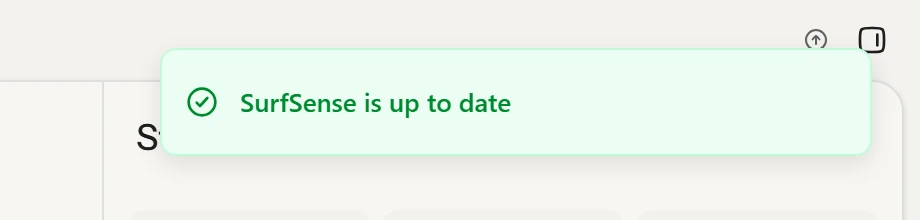
If you answered No to update checks when you set SurfSense up, it asks Allow SurfSense to check for updates? first. Allow also turns on the daily check.
Or check in Settings › About
Settings › About shows the version you have. Check now checks again, and Release notes opens the notes for your version.
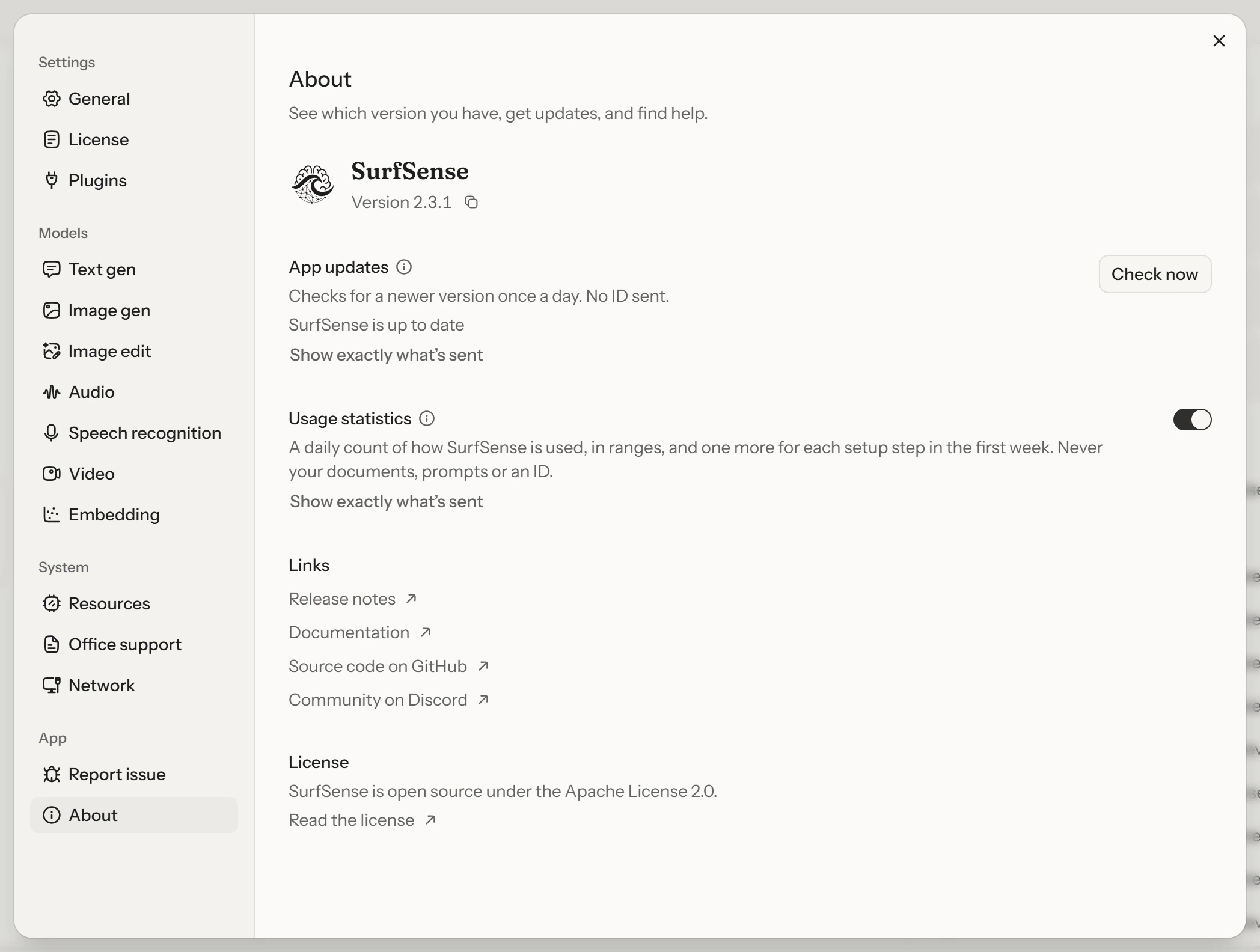
Install it
When a newer version is out, SurfSense downloads it, and the title bar button turns into Update. Click it, or Restart to update in Settings › About, to install it now. Or carry on working: it installs the next time you quit. Your data folder is not touched.
The title bar button doesn't appear when your organization or a package manager handles updates, or in Docker.
Next
- See and control what leaves your computer, including update checks.
Last updated on November 23, 2026