 SurfSense Docs
Make and edit images and infographics
Download an image model, draw a picture from your sources in Studio, and edit it into a new version
Image in Studio needs an image model. A model on your computer works offline and runs only while Studio needs it; with a graphics card a picture takes seconds, without one several minutes. See Image models.
Choose an image model
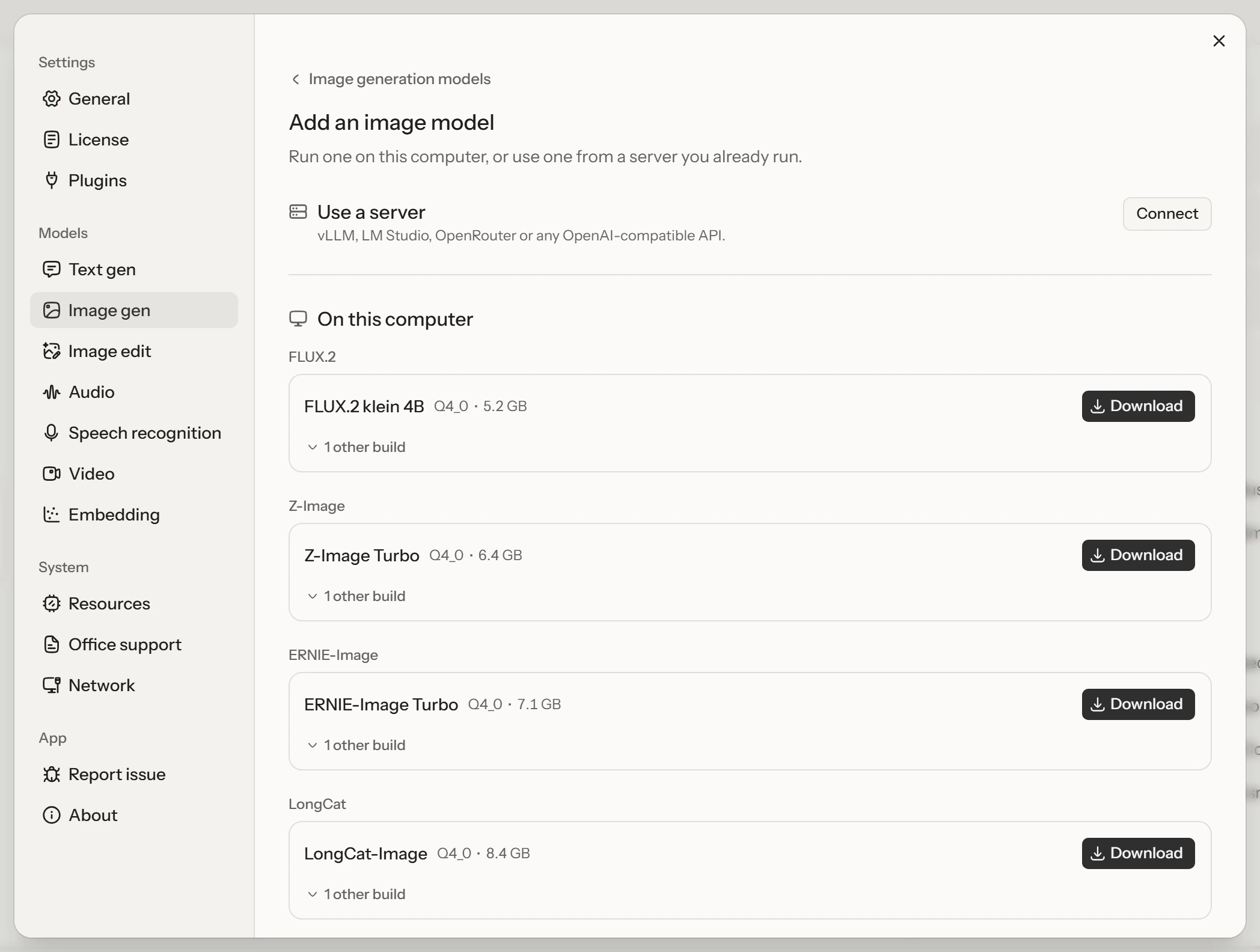
Open Settings, then Image gen, and click Add model. Pick a model under On this computer and click Download, or use one from a server you connected.
Use it for editing too
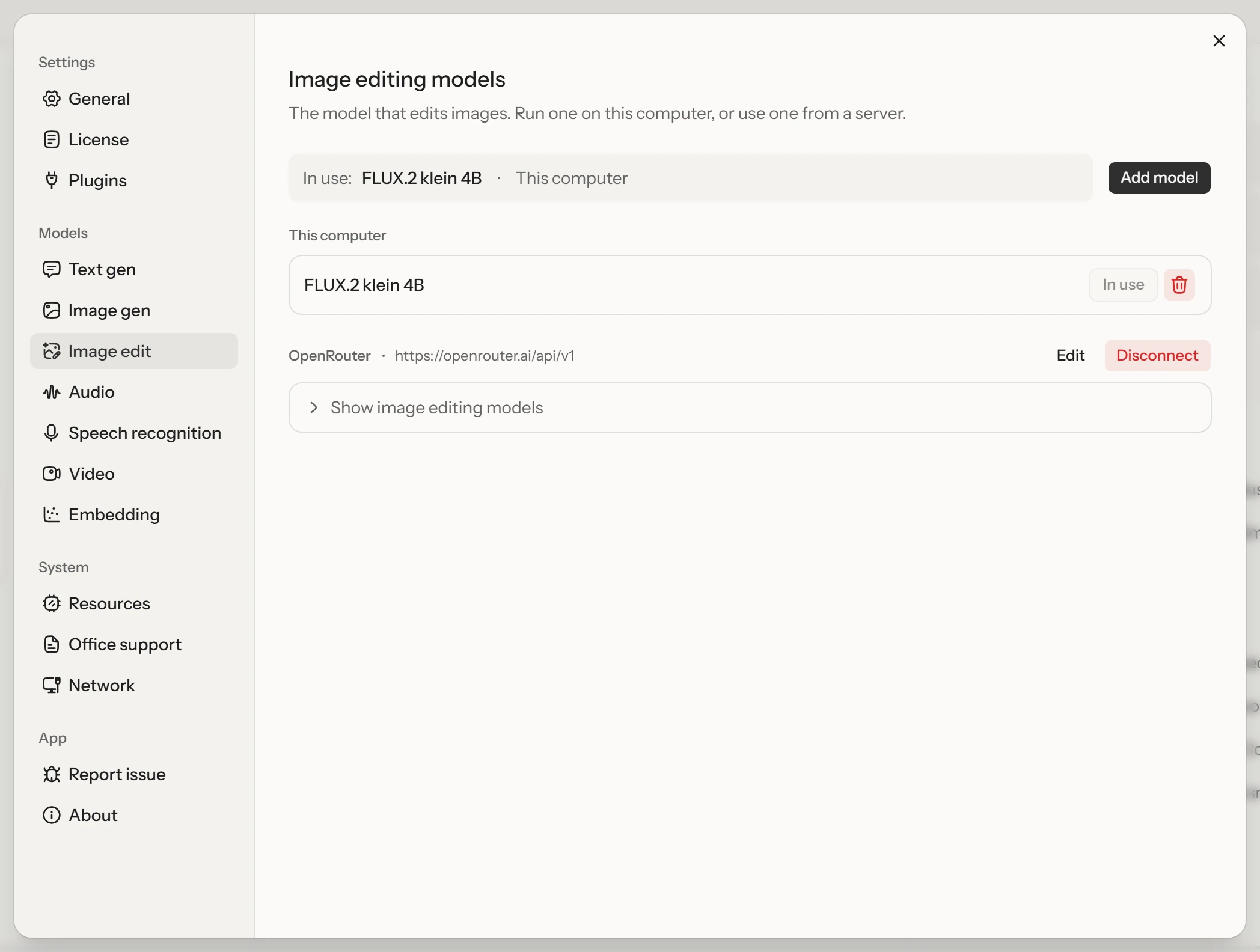
When the download is done, click Use. FLUX.2 klein 4B both draws and edits from one download: open Image edit and click Use on it there as well.
Draw a picture
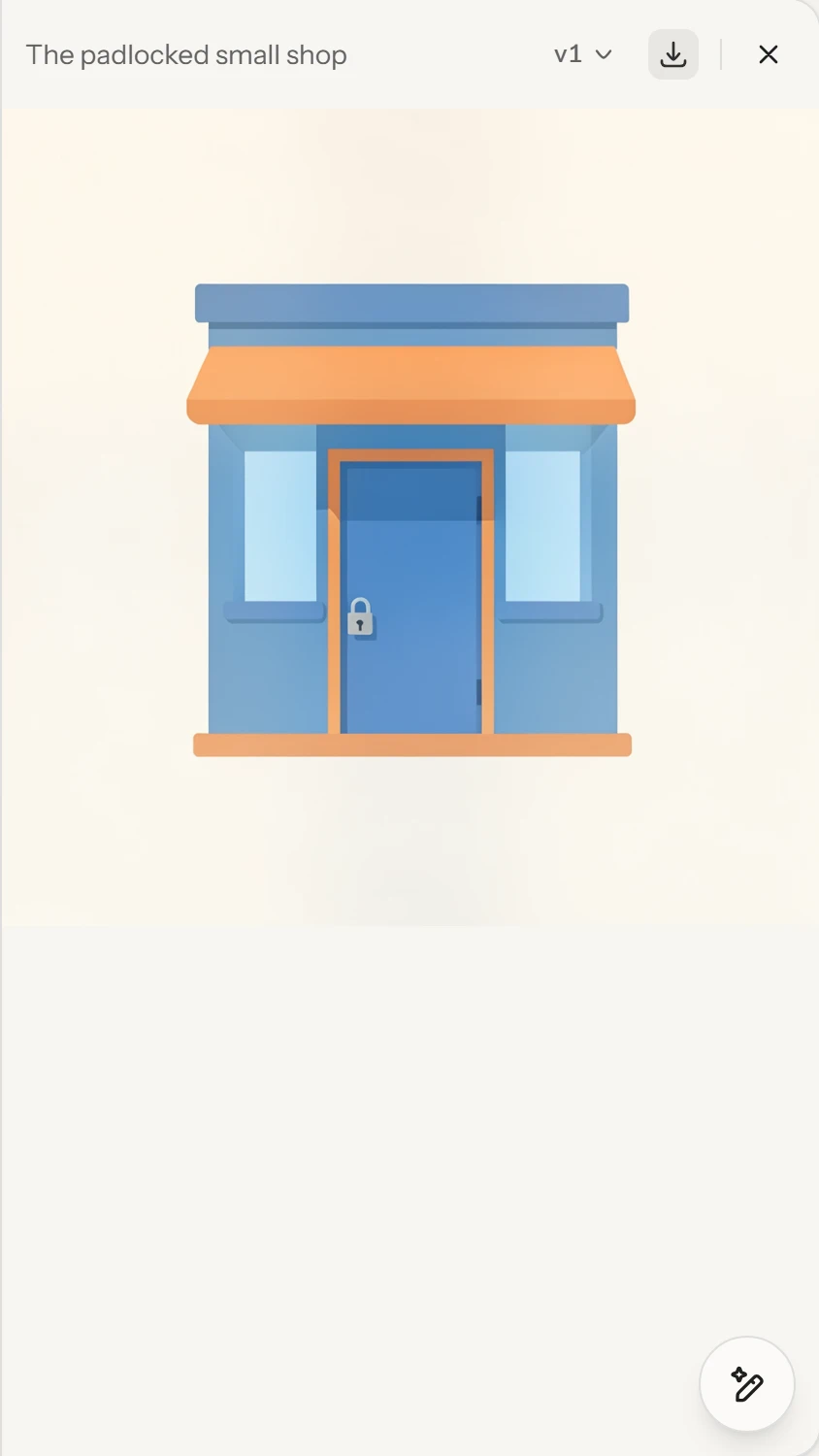
In Studio, click Image. Under Type, keep Image, or choose Infographic for a picture that lays out your sources' key points. Describe what you want under Prompt (optional), and click Generate. Open it when it's ready.
Describe a change
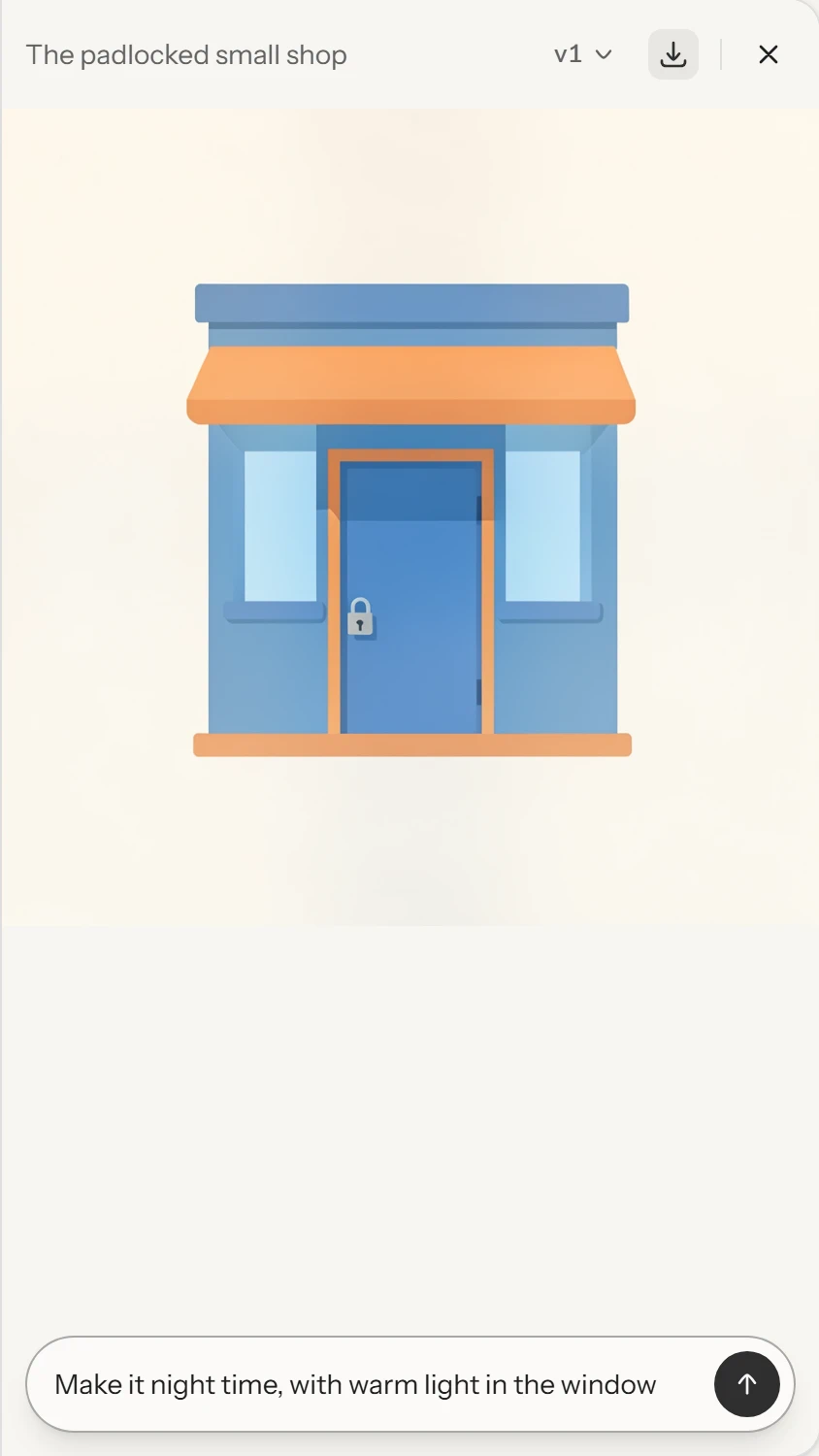
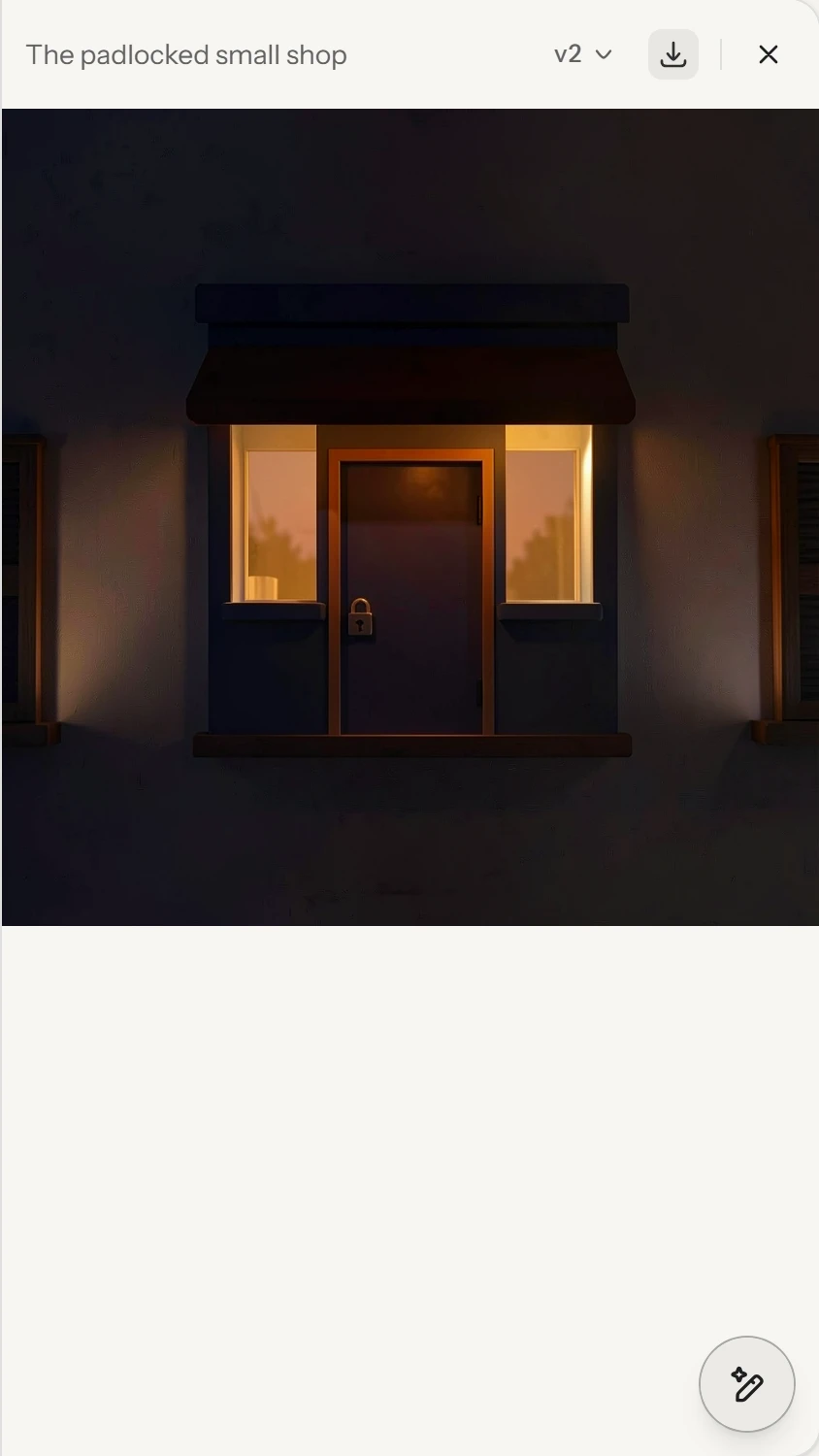
Click the round button at the bottom right, describe a change, such as "make it night time", and click Edit. An edit applies to the whole picture.
Get the new version
The edited picture is the next version, and the earlier one stays under the version button. Edits chain: each one starts from the version you have open.
Next
- The agent can draw a picture you ask for and place it in a document it makes.
Last updated on November 23, 2026