 SurfSense Docs
Run a model on your computer
Download a chat model in Settings, so your chats never leave your computer
A model on your computer keeps your questions and documents on it, and works offline once it's downloaded. On this computer has the details.
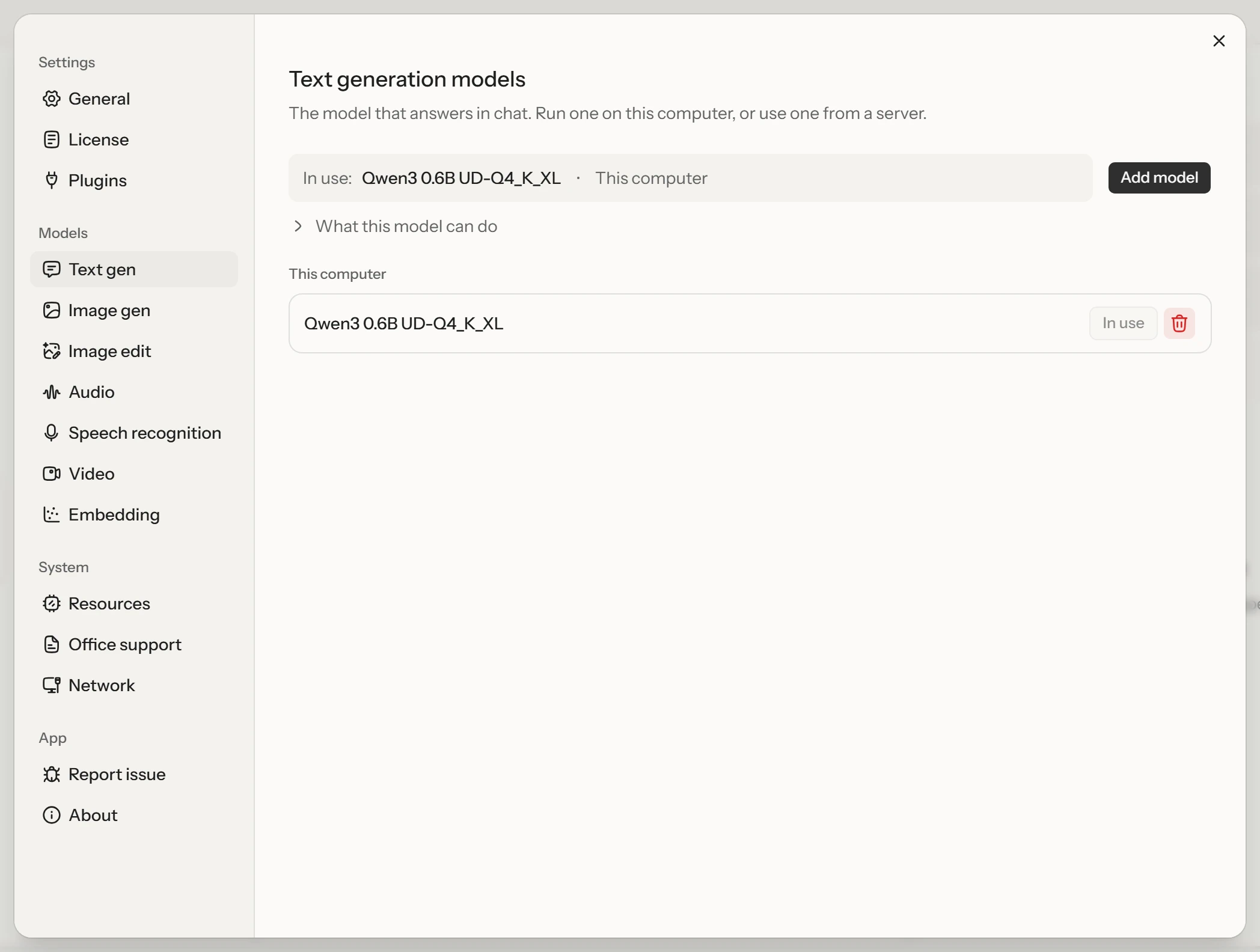
Open Settings › Text gen
Click the gear at the bottom left to open Settings, then Text gen under Models. In use: names the model that answers in chat now.
Pick a model that fits
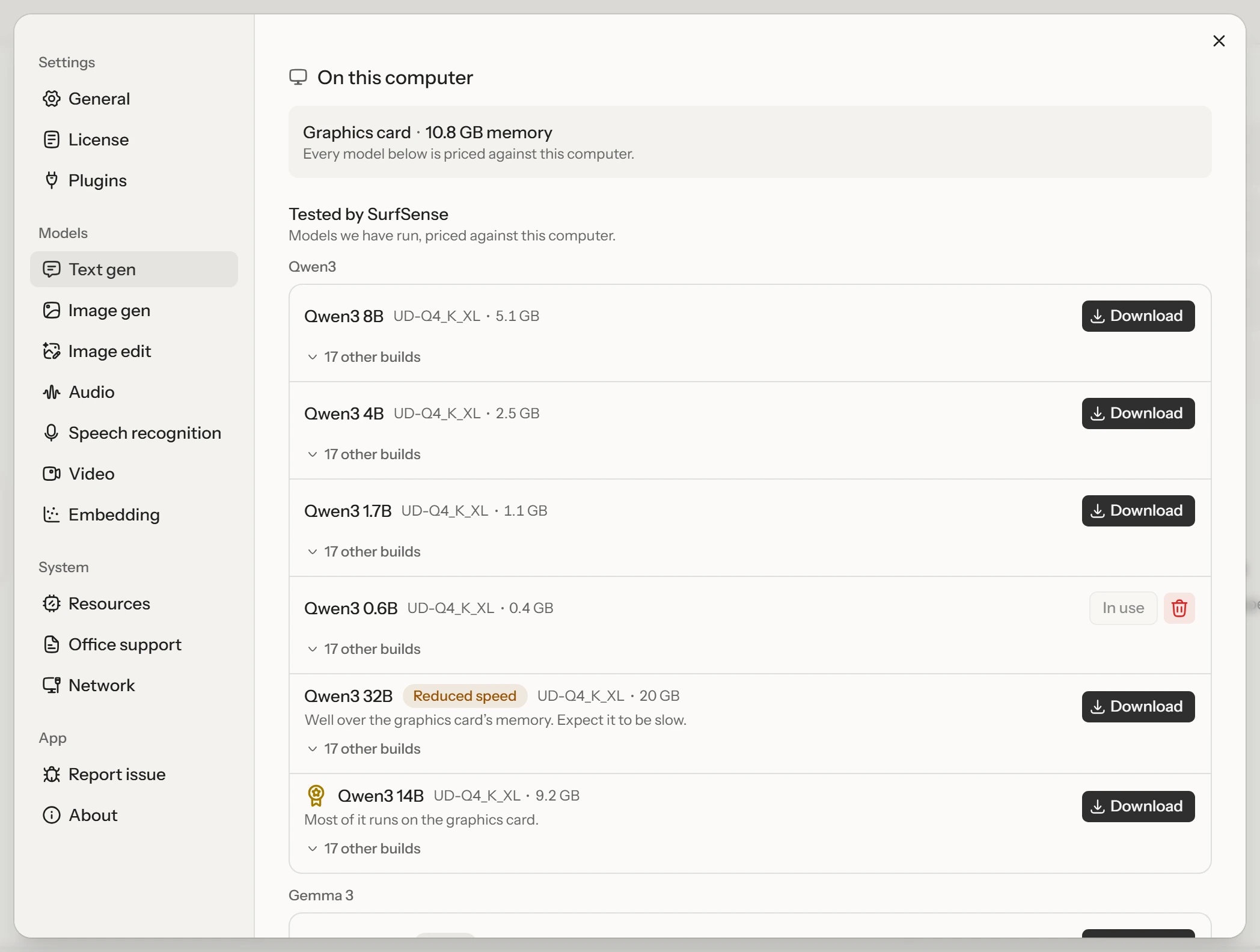
Click Add model and scroll to On this computer. SurfSense shows what it found, such as Graphics card and its memory, and judges every model against it:
- A model with no badge runs at full speed.
- Reduced speed runs partly on the processor, so it's slower.
- Won’t fit needs more memory than this computer has.
The model with the ribbon is recommended for your computer.
Download it
Click Download on the model you want. When it's done, it reads In use, and the next reply in any chat comes from it. To switch back later, click Use on another model.

Next
- Use a model from a server or provider, such as OpenRouter.
- Models compares the ways to get one.
Last updated on November 23, 2026