 SurfSense Docs
See and control what leaves your computer
Check where SurfSense can send data in Settings › Network, block a destination, and answer the question SurfSense asks first
Nothing leaves your computer until you allow where it goes. Every place SurfSense can send data is a destination, such as a model provider, a plugin's server or a site, and each one starts off. See Privacy for what each destination gets.
Open Settings › Network
Open Settings, then Network. It lists every destination SurfSense knows, with its host and its last call. A ticked destination is allowed. App updates and Usage statistics follow your answers from when you set SurfSense up.
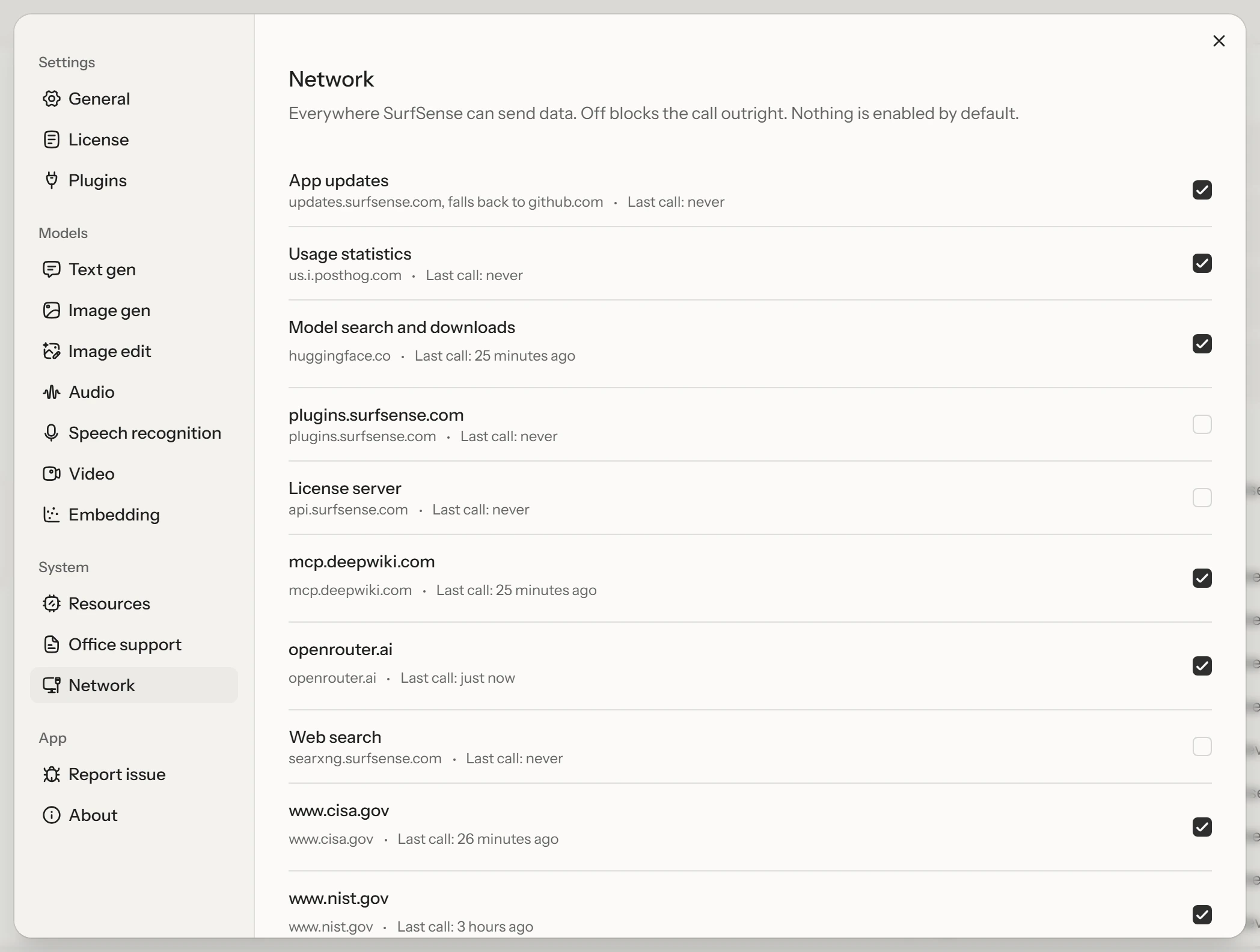
Untick one to block it
Untick a destination to block it outright: the next call to it is refused before it leaves your computer.

Answer the question
The next time you do something that needs a destination that is off, such as adding a page from that site, SurfSense asks first and says what the destination gets. Allow turns it on. Cancel leaves it off, and nothing is sent.
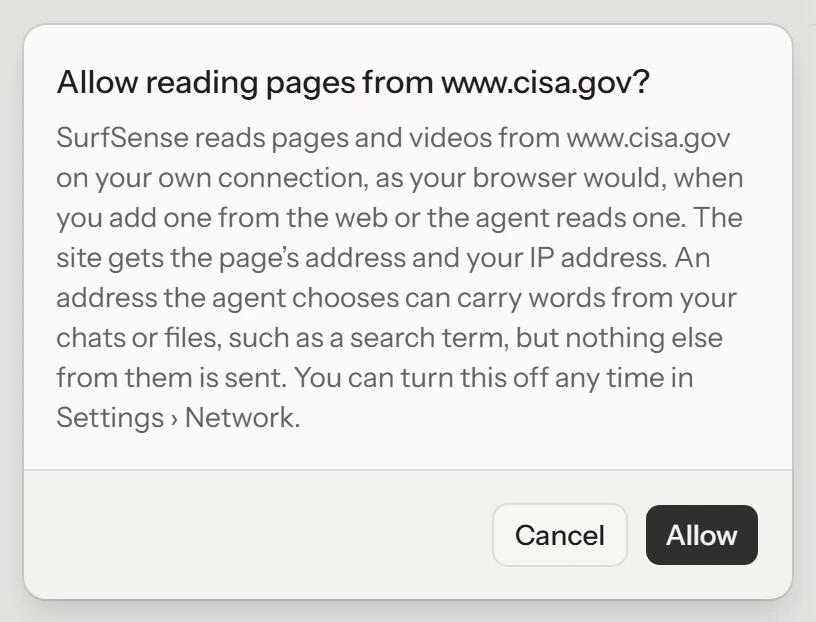
Work that runs on its own never asks: a Studio job that needs a destination that is off fails with the reason, and asks the next time you do it yourself. Your own computer is not a destination, so a model server on it, such as LM Studio or Ollama, needs no permission.
Next
- Use a model from a server or provider, which asks to reach the provider's host.
- Run a model on your computer, so your chats and documents stay on it.
Last updated on November 23, 2026