 SurfSense Docs
Set up SurfSense
From the welcome screen to your first workspace, with a model that runs on your computer
The first time you open SurfSense, a short setup runs. You see it once, and you can change every choice in it later, except the embedding model. Haven't installed SurfSense yet? Start with Install.
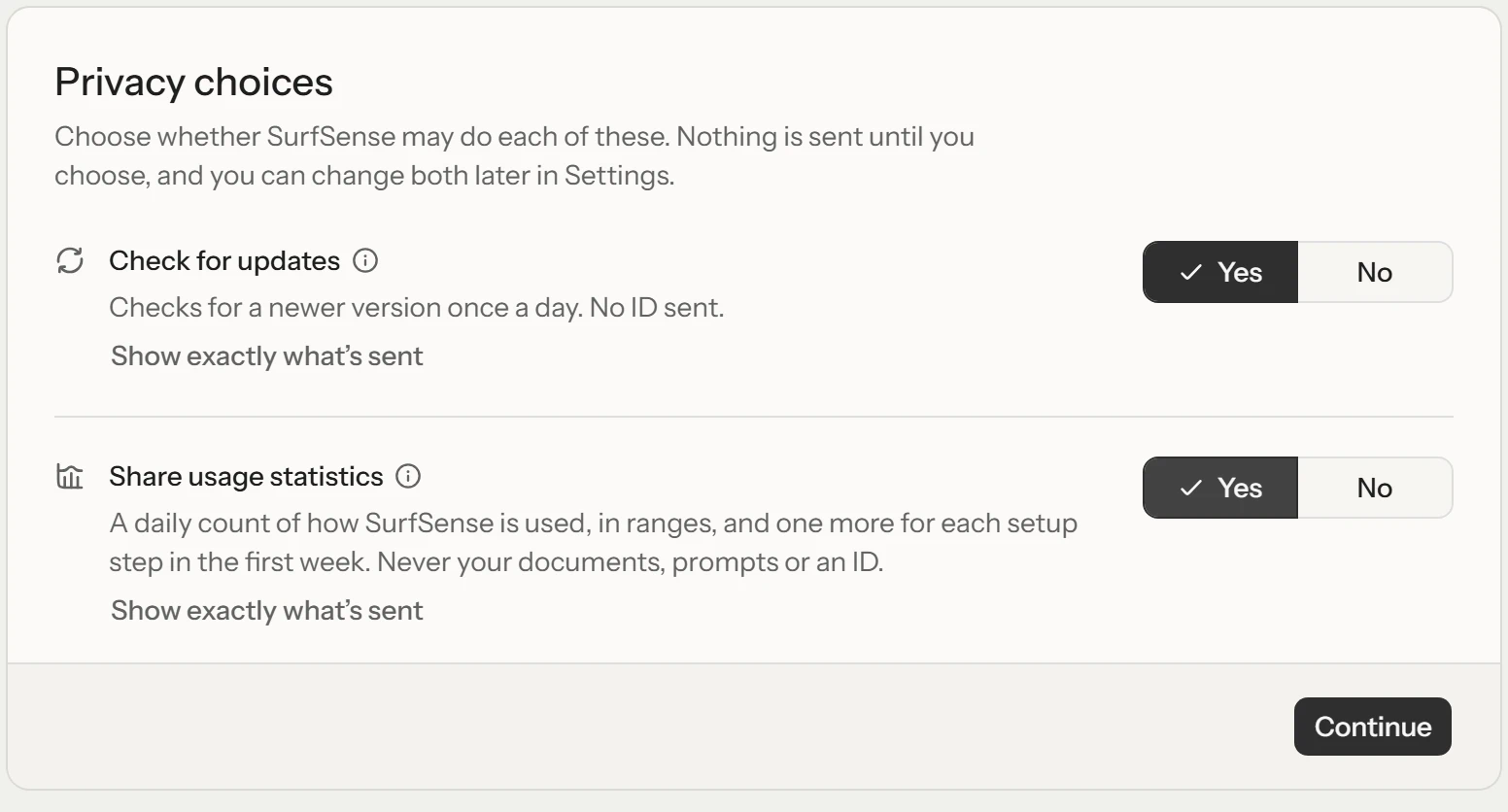
Make your privacy choices
Answer Yes or No to Check for updates and to Share usage statistics, then click Continue. Nothing is sent until you choose, and Show exactly what’s sent lists what each one sends. See Privacy.
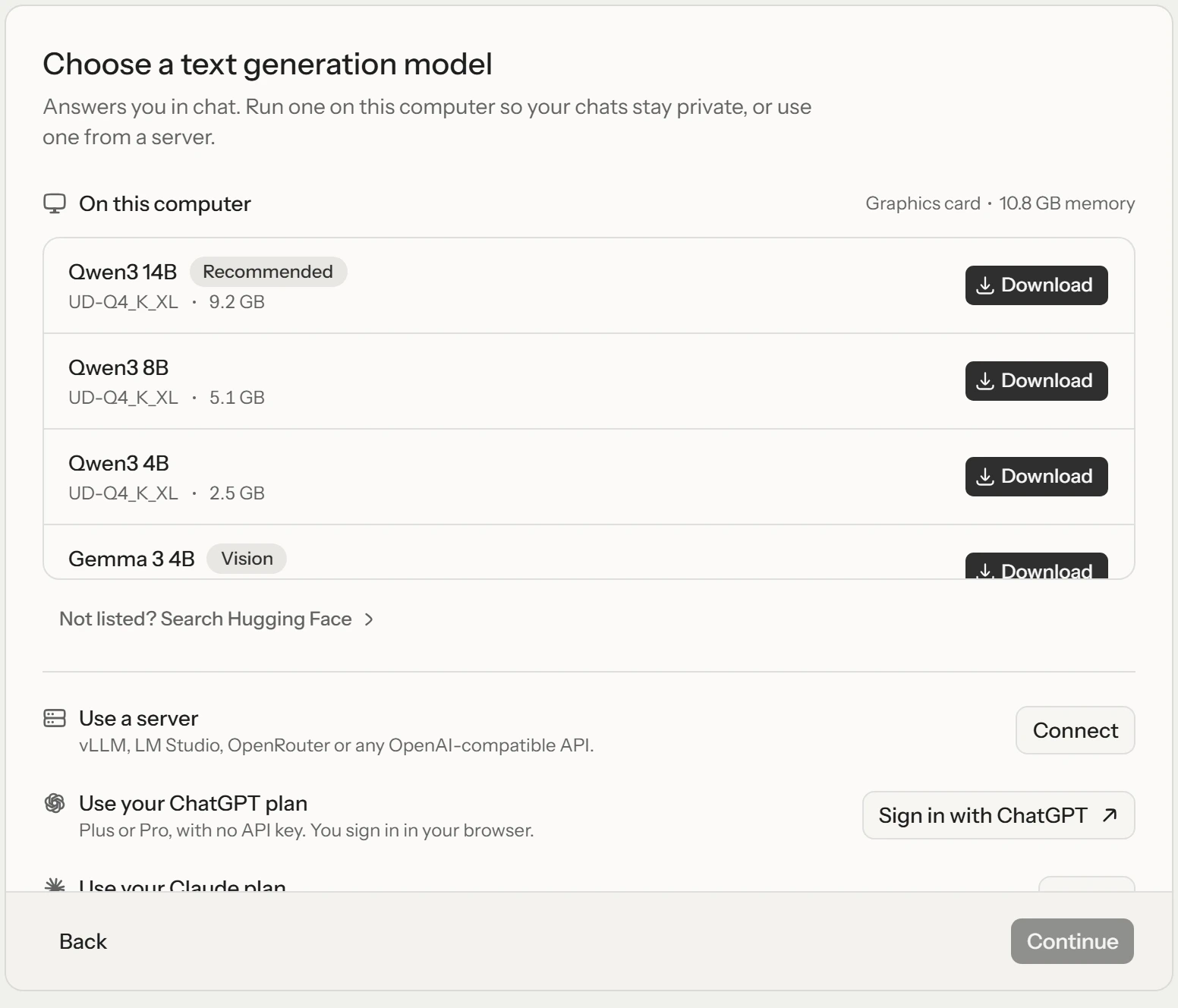
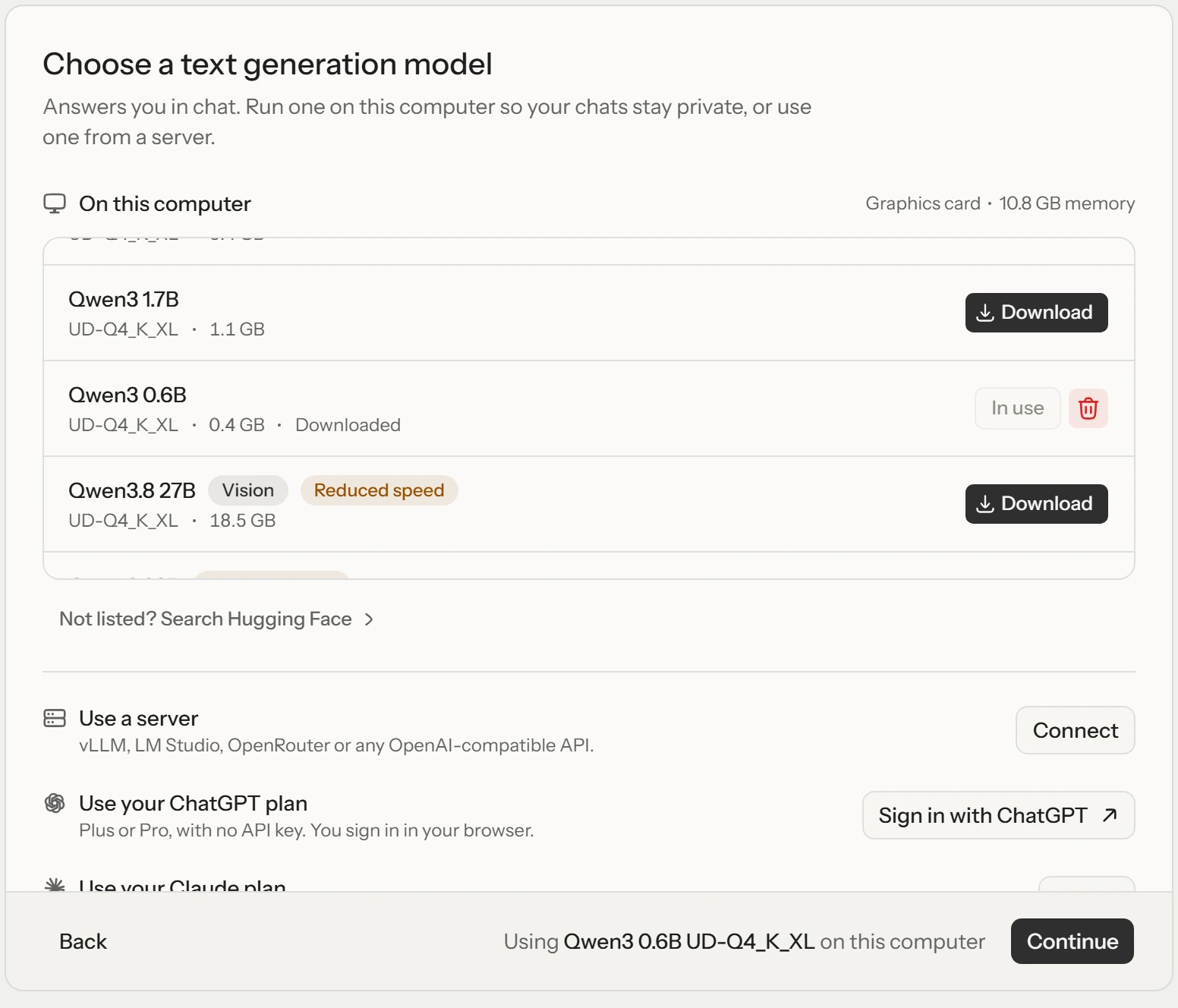
Choose a text generation model
This is the model that answers you in chat. Under On this computer, SurfSense lists the models that fit your computer and marks one Recommended. A smaller model downloads sooner; the recommended one answers better.
To use a model from a server or a plan you already pay for instead, use the options below the list. See Use a model from a server or provider.
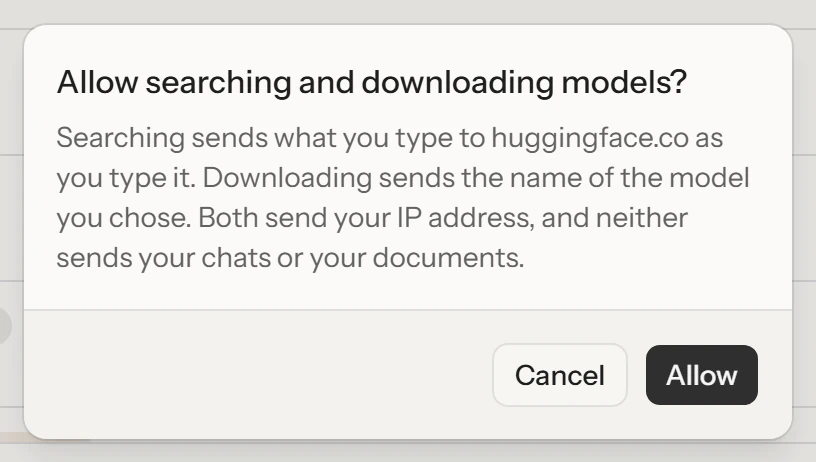
Allow the download
Click Download beside the model. The first time, SurfSense asks Allow searching and downloading models? and says what Hugging Face receives. Click Allow.
Wait for the model
The model downloads, and once it's done it's the one in use: its row reads In use, and the bar at the bottom names it. Click Continue.
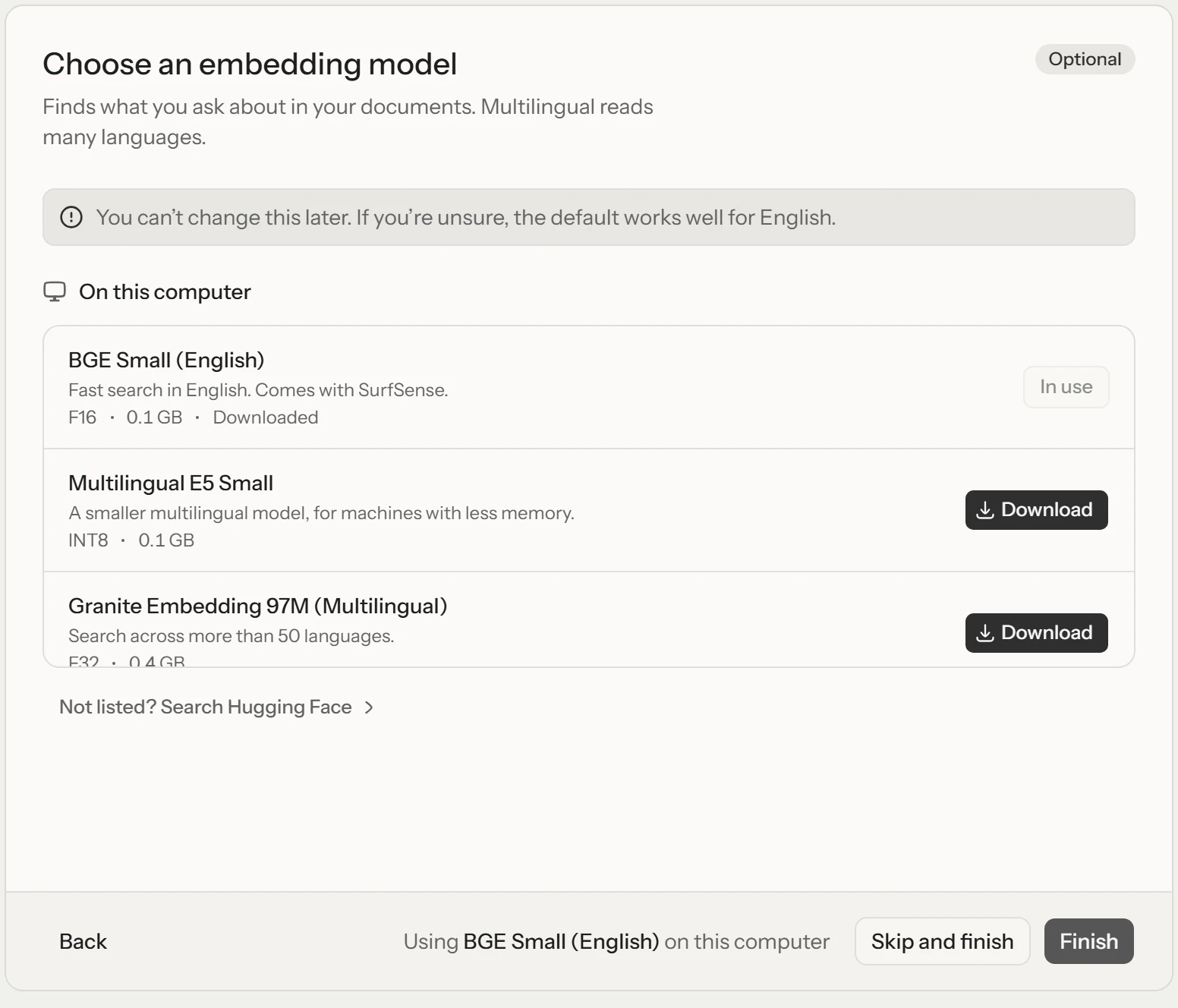
Choose an embedding model
The embedding model finds what you ask about in your documents. The one that comes with SurfSense works well for English; pick a multilingual one if your documents are in other languages. You can't change it later. Click Finish.
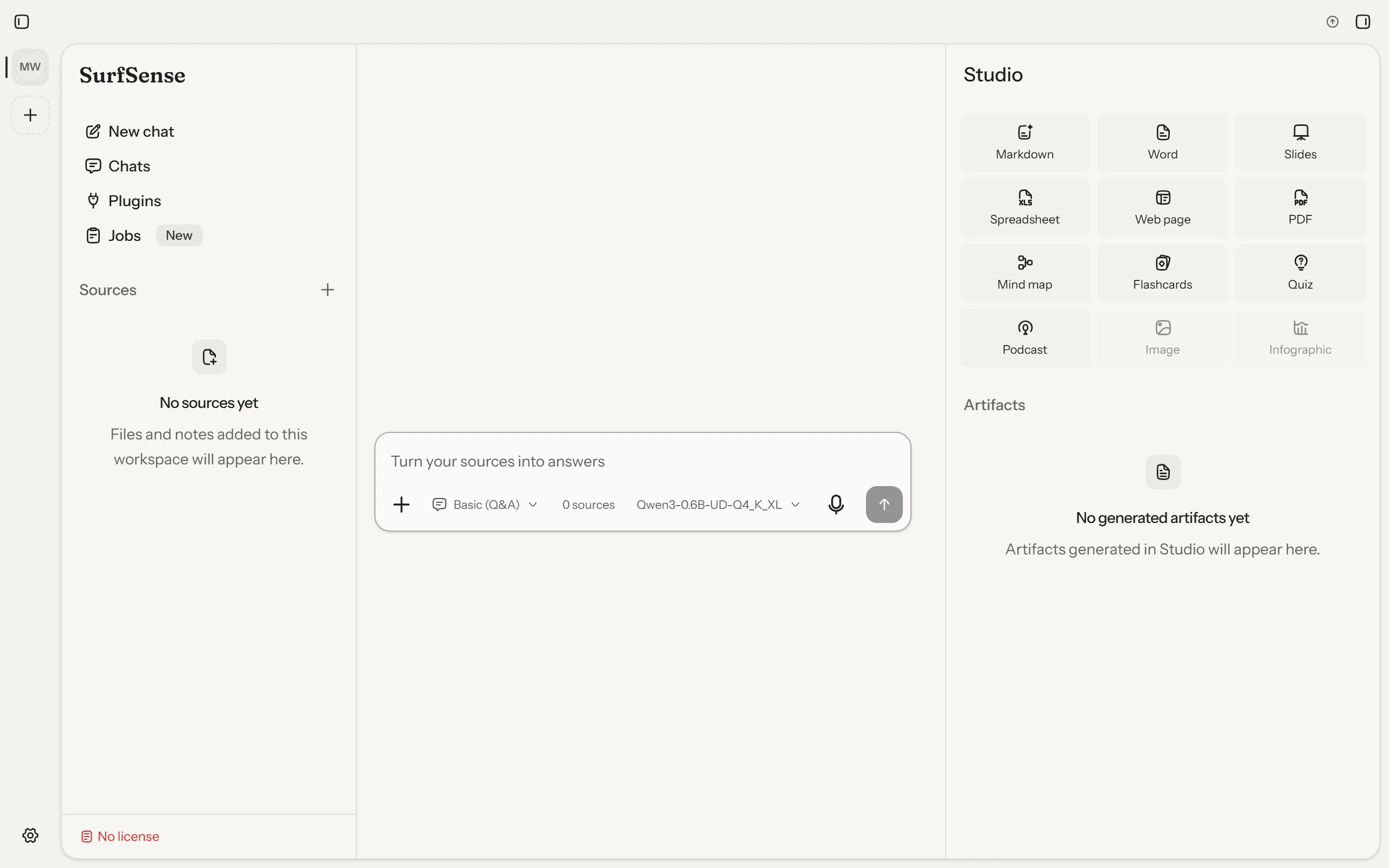
Your first workspace opens
SurfSense opens a workspace called My Workspace: sources on the left, chat in the middle and Studio on the right.
Next
- Add files and folders to answer from.
- Ask a question and check its citations.
Last updated on November 23, 2026