 SurfSense Docs
Use a model from a server or provider
Connect OpenRouter, or any server that speaks the OpenAI API, and chat with one of its models
A server or provider gives you models too big for your computer. This guide uses OpenRouter; LM Studio, Ollama, vLLM and any other OpenAI-compatible server work the same way. A model from a provider receives your questions and excerpts of your documents. See Use a server.
Open the server form
Open Settings, then Text gen, and click Add model. Under Use a server, click Connect.
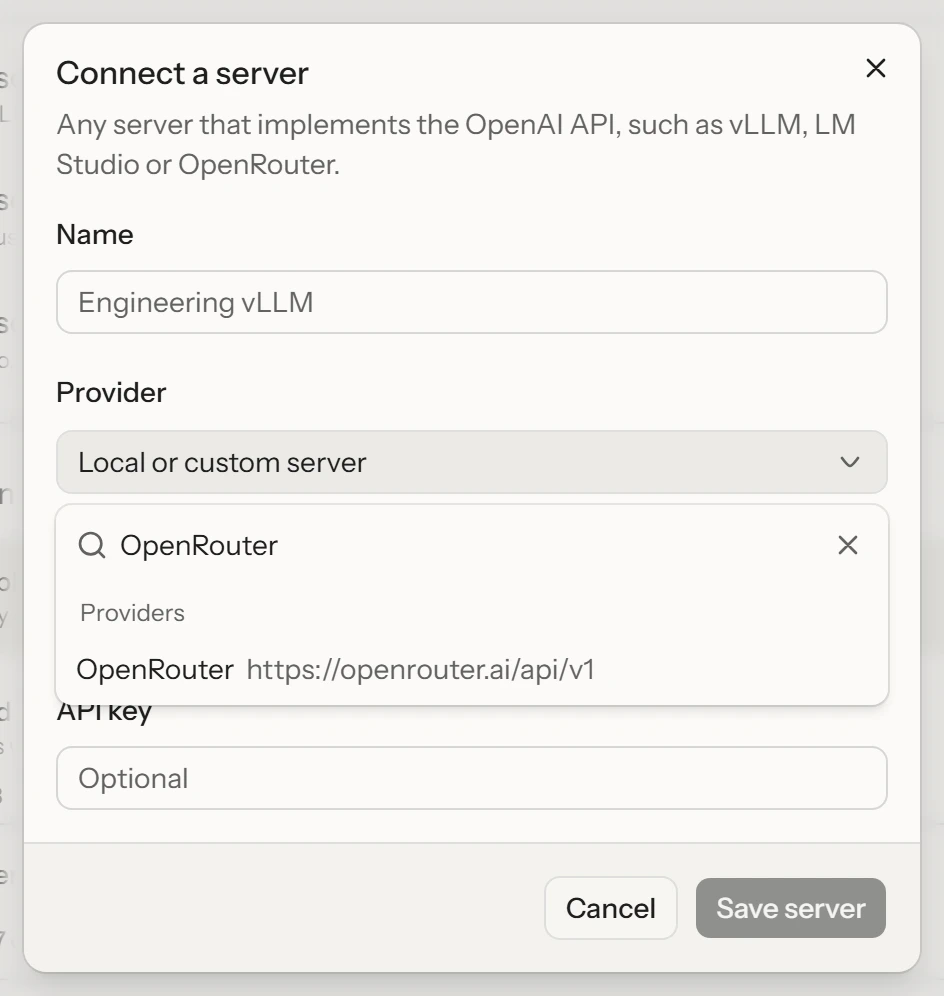
Pick your provider
Click Provider and type its name to find it. Picking a provider fills in the Name and the Base URL. For a server of your own, keep Local or custom server and type its address under Base URL.
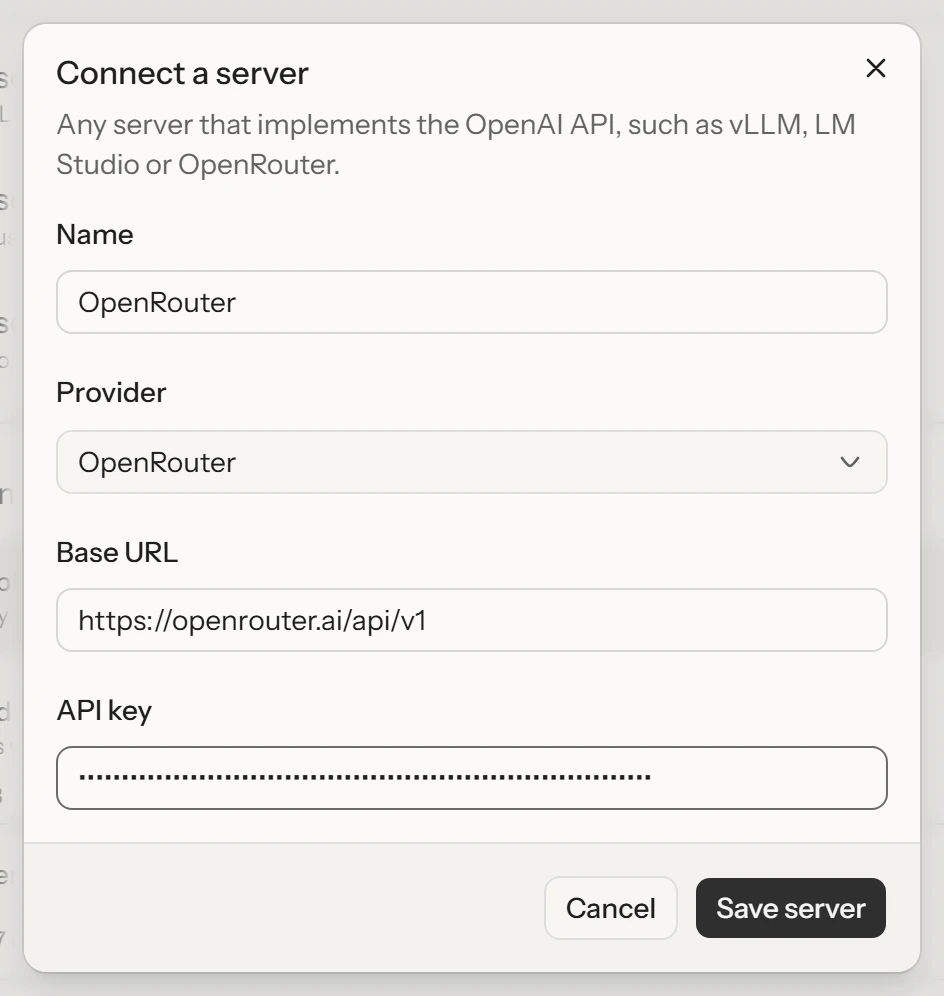
Paste your API key
Paste the key from your provider's dashboard under API key, then click Save server. A server on your own computer may need no key.
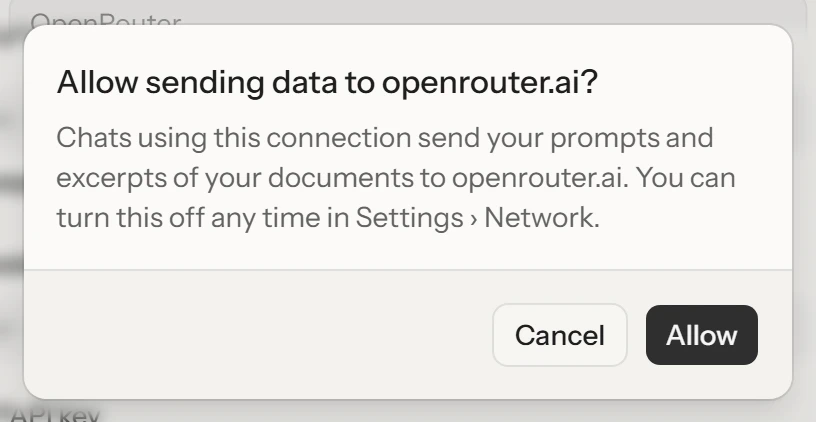
Allow the provider
The first time, SurfSense asks before it sends anything to the provider, and says what it receives. Click Allow. You can turn it off later in Settings › Network.
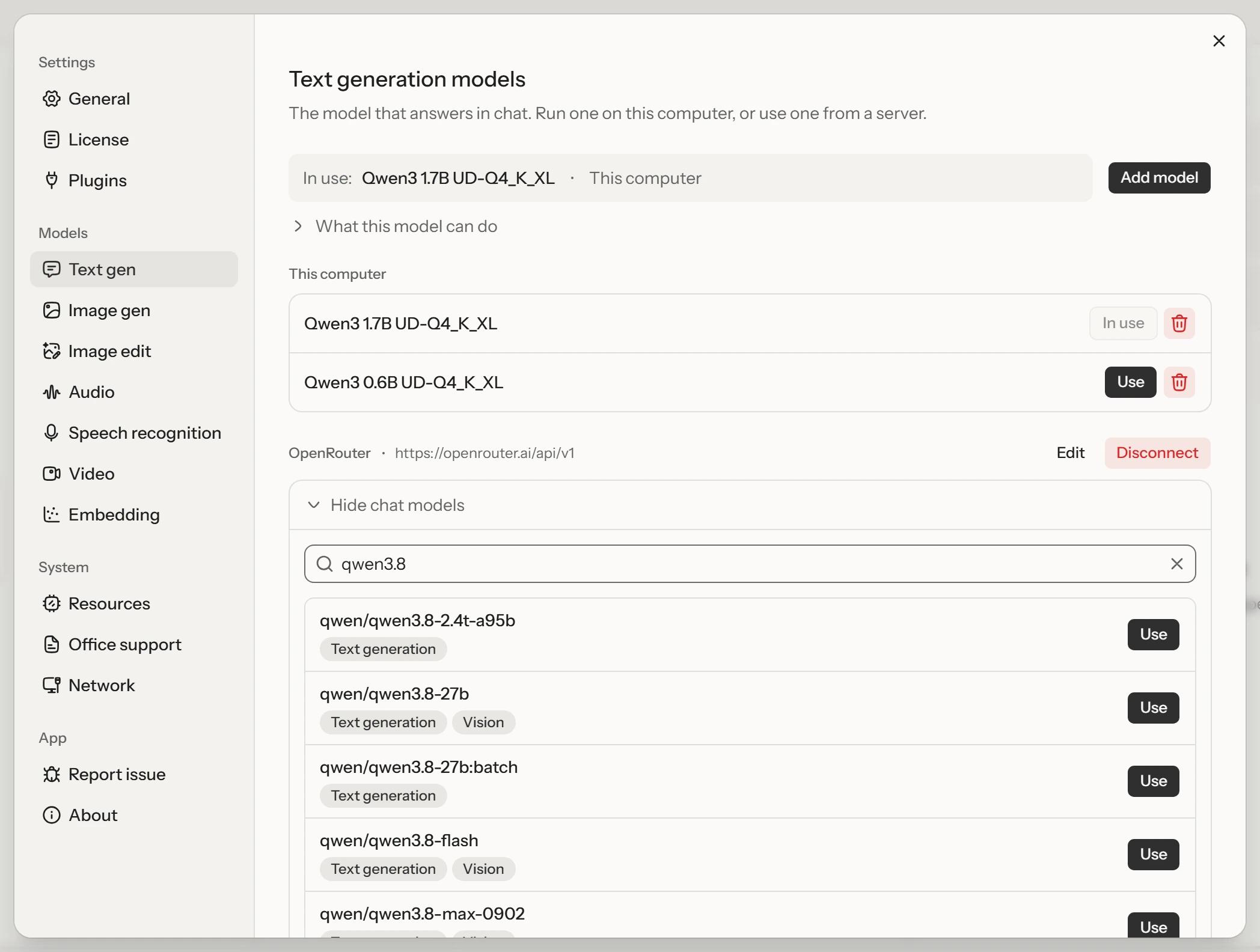
Find a model
SurfSense checks the server and lists its chat models under its name. Type in the search box to find one, then click Use.
Test it
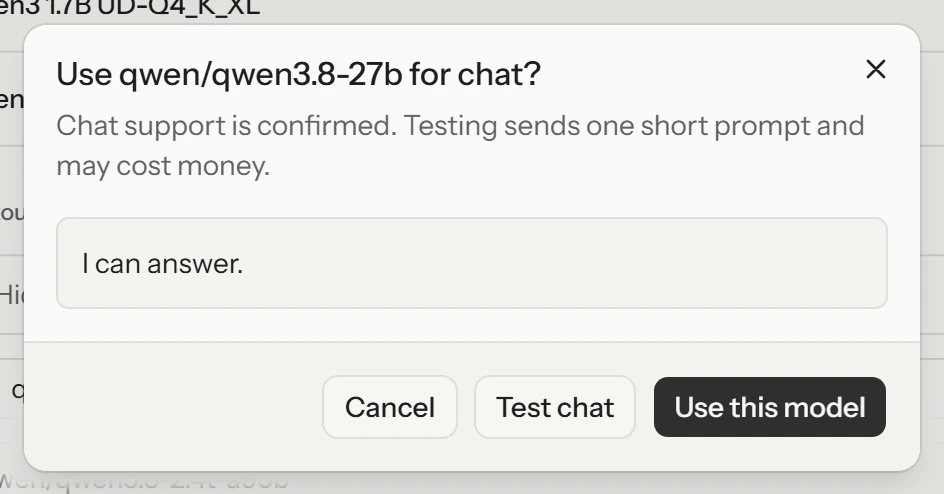
SurfSense asks whether to test the model first. Test chat sends one short prompt, which your provider may bill. When the model answers, click Use this model.

Next
- Add files and folders to answer from.
- Use your ChatGPT plan or your Claude plan instead of an API key.
Last updated on November 23, 2026